Can you edit selected text with AI and leave the rest of the draft alone?
You can — if the tool works on the passage you highlighted instead of the document around it.
Writva improves the passage you selected while preserving the surrounding draft. Highlight a sentence or a paragraph, say how it should change, and leave the rest of your writing alone.
How to edit selected text with AI in Writva
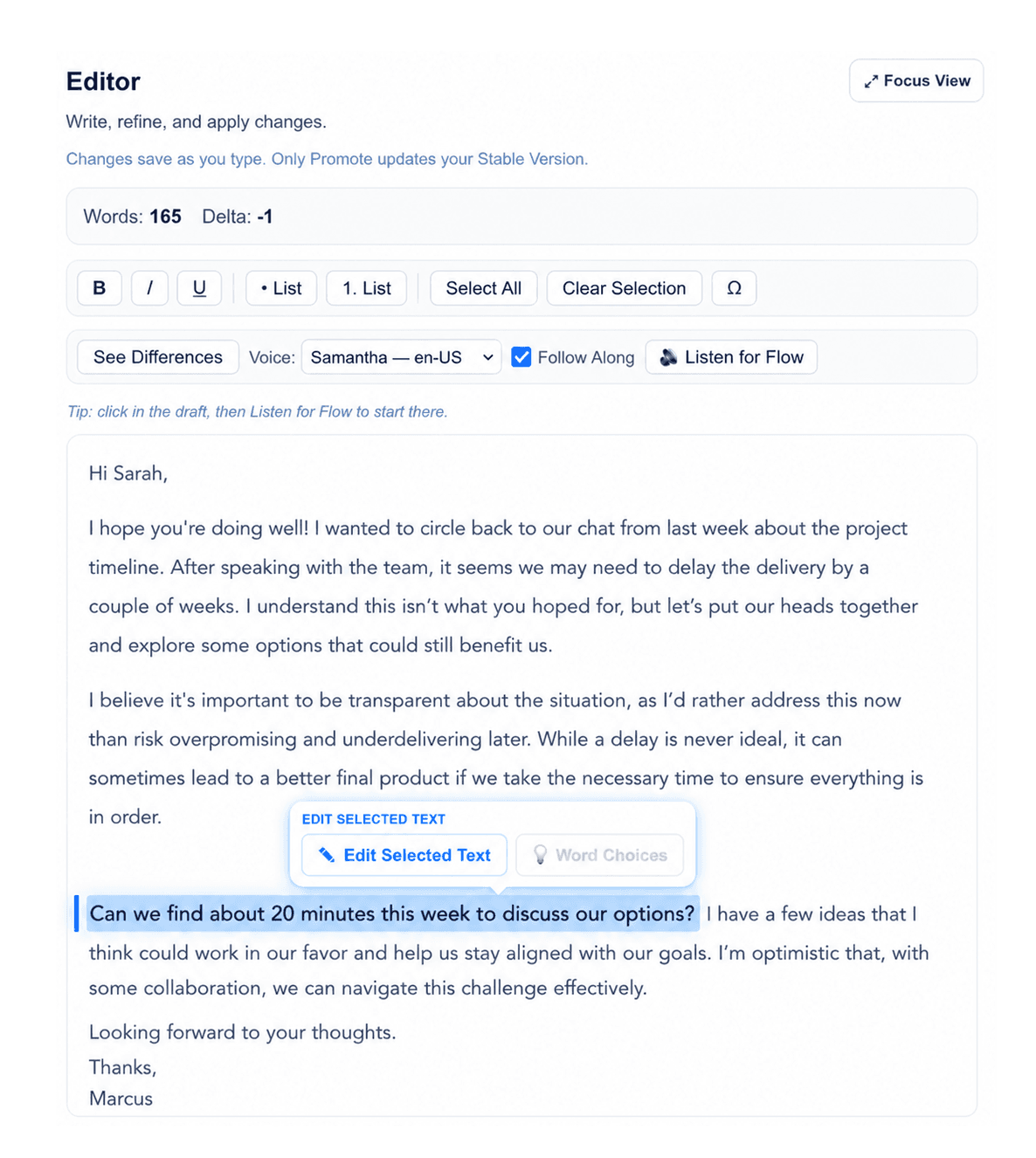
Select the sentence or paragraph you want to change. Writva improves that passage in the Edited Version while leaving the surrounding Stable draft intact. Nothing you did not select is sent for that targeted edit, and nothing replaces your draft until you approve it.
Small requests should not trigger big rewrites
You've got a draft that's nearly there; it just needs a tweak. But when you ask an AI to fix one awkward sentence, it reworks more than you intended.
You're faced with different rhythms, altered word choices, and a paragraph you had painstakingly crafted now reworded without your consent.
Writva overcomes that obstacle that AI writing generators frequently create.
Fixing a single sentence calls for a small tweak, not a total rewrite. Writva empowers you to utilize AI for minor edits whenever necessary, while also giving you the option to manually override any changes you wish to reject. We believe that AI is intended to assist writers, not to take their place. Since you are the writer, you control the specific parts of your draft that remain unchanged from your initial version.
How the workflow works
- Select the passageHighlight the sentence or paragraph you want to change in your Stable Version.
- Open the selected-text editing actionWritva recognizes the selection and offers to work on just that passage.
- Say what should changeGive an instruction in your own words, or choose one of the available editing actions.
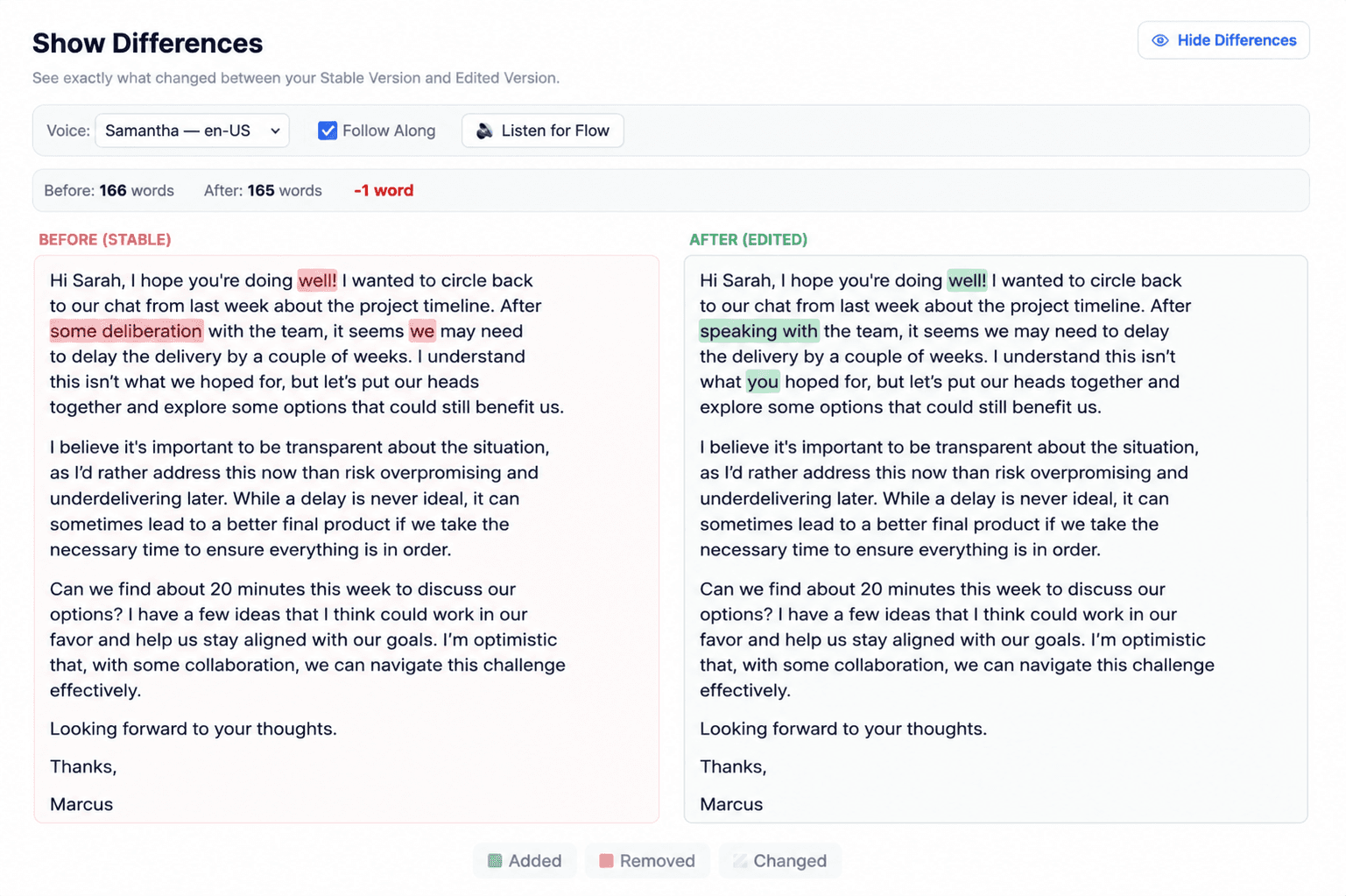
- Review the result in contextThe proposed revision appears in the Edited Version, beside your original, so you can see it in place rather than in isolation.
- Adjust it by hand if you wantThe Edited Version is a normal editable draft. Rewrite any part of the suggestion yourself.
- Promote only when satisfiedYour Stable Version changes when you decide it should — not before.
Selecting text never changes your Stable Version on its own. It only tells Writva which passage you are working on.
A worked example
Here is the same paragraph before and after a targeted edit. Only the middle sentence was selected.
Before
Mara paused outside the conference room. She had rehearsed the explanation twice, but the numbers still felt harder to defend than they had on paper. The proposal could save the project, although it would also force the team to abandon three months of work.
The highlighted sentence is the selection.
Instruction
“Make this sentence clearer and slightly more direct without changing the meaning.”
After
Mara paused outside the conference room. She had rehearsed the explanation twice, but the numbers were still harder to defend aloud than on paper. The proposal could save the project, although it would also force the team to abandon three months of work.
The first and third sentences are unchanged, word for word.
This is an illustration of the workflow, not a guaranteed output. Wording varies with your instruction and your draft.
What changes, and what stays untouched
Writva may change
- The wording inside the passage you selected
- Clarity, tone, or flow you asked for
- The proposed Edited Version, which you can keep editing
Writva keeps outside the selection
- The surrounding paragraphs you did not select
- Your Stable Version, until you Promote
- Your earlier versions and history
- The decision about whether to accept the revision
Reviewing the change before you keep it
A revision is a proposal until you accept it. You see it beside your original, and Promote is the moment you decide.
What to keep in mind
- Review every revision. Writva proposes wording; judging whether it is right for your piece is your job.
- Your selection defines the scope. If the highlight does not cover the exact passage you meant, the edit will not either.
- A broad instruction can still substantially rewrite the passage you selected — the scope limit is the selection, not the size of the change within it.
- Writva does not verify facts. It will not tell you whether a claim in your draft is accurate.
- Your Stable Version stays as written until you Promote.
Questions writers ask
Can I edit only one sentence with AI?
Yes. Select the sentence you want to change and use the selected-text editing action. Writva works on that passage rather than regenerating the whole document.
Does Writva change the rest of my draft?
The text outside your selection is not submitted for that targeted edit. The surrounding paragraphs stay as you wrote them.
Is the AI revision accepted automatically?
No. A proposed revision appears in the Edited Version. Your Stable Version stays exactly as it was until you choose to Promote.
Can I edit the result before keeping it?
Yes. The Edited Version is a normal editable draft. You can rewrite any part of the suggestion by hand before promoting it, or discard it entirely.
Improve one passage without surrendering the whole draft
Bring a draft you already care about and change only what needs changing.
Related
- Version HistoryExperiment with a revision without losing the draft you already trust.
- Voice PreservationWhy edits should sound like you, and how Writva keeps them that way.
- How to Edit Selected Text With AIThe method: scope, instruction, review, accept.
- How to Preserve Your Writing VoiceWhat to protect during revision, and how to spot when it is gone.
- For AuthorsLong-form drafting, revision, versions, and manuscript review.